
TL;DR

Get cleaning gear delivered free — and shop member deals
- Fast, free delivery on millions of items
- Access to Prime Big Deal Days deals on October 6–7
- Prime Video, Amazon Music and more included
A blinking light on your steam mop usually signals a warning—like low water, overheating, or a blockage. Recognizing these signals and following simple steps can keep your mop working efficiently and safely.
Steam mops are a favorite for quick, chemical-free cleaning, but nothing kills the mood like that blinking light. It’s like your device’s way of saying, ‘Hey, something’s up.’ Knowing what these signals mean can save you time, frustration, and even prevent damage to your device.
In this guide, you’ll learn how to interpret common indicator lights, what actions to take, and how to keep your steam mop running smoothly. Whether it’s a warning about water levels or overheating, understanding these cues empowers you to troubleshoot confidently.
Most blinking lights warn of low water, overheating, or blockages, not total failure.
Always turn off and unplug the steam mop before inspecting or cleaning it.
Refilling with distilled water and descaling can prevent blinking issues caused by mineral buildup.
Follow a step-by-step troubleshooting process: check water, cool down, clean filters, reset.
Persistent blinking signals likely need professional repair—don’t delay if simple fixes don’t work.
What does a blinking light actually mean on your steam mop?
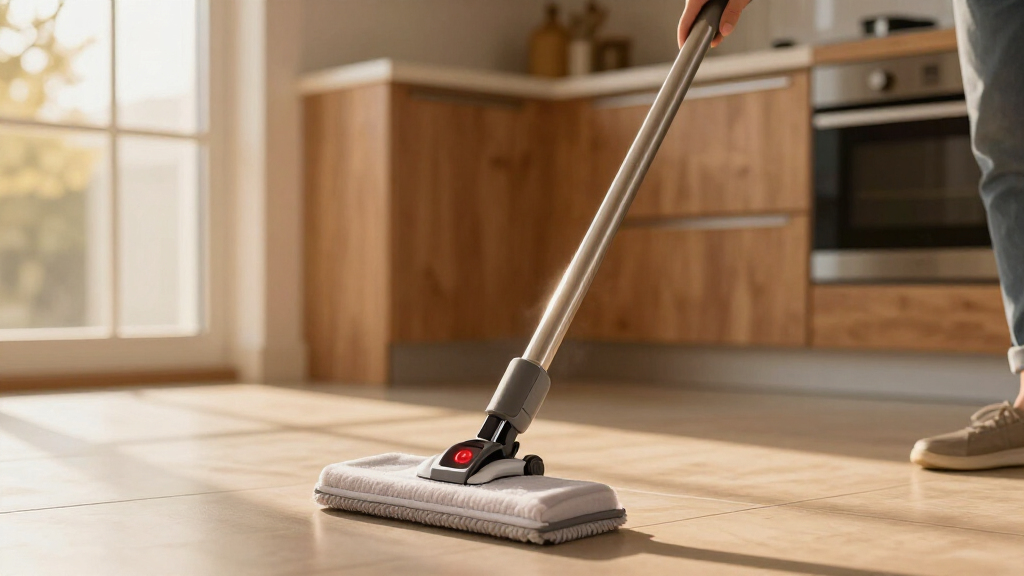
A blinking light is usually a warning or an alert. It signals that your device needs attention—like a low water tank, overheating, or a sensor issue. For example, if your steam mop’s power light blinks rapidly, it might be overheating or the water tank is empty. Recognizing these patterns helps you prioritize what action to take, preventing further damage or safety hazards.
These blinking signals aren’t random; they are critical safety features designed to protect both the device and the user. Ignoring them can lead to overheating, electrical faults, or damage to internal components. Understanding why these signals appear helps you make informed decisions—whether to refill, cool down, or seek professional help—and reduces the risk of costly repairs or safety issues.
As an affiliate, we earn on qualifying purchases.
Why is my steam mop blinking? Top reasons and concrete examples
Understanding why your steam mop blinks is essential because each blinking pattern or cause can have different implications for your device’s health and safety. For instance, a low water warning isn’t just a prompt to refill—it indicates that continued use without refilling can lead to overheating or damage to the heating element, which could shorten the lifespan of your device. Overheating signals are critical because operating a hot device without proper cooling can cause internal components to warp or fail, leading to expensive repairs. Blockages from mineral buildup aren’t just inconvenient—they can cause uneven steam output, reducing cleaning effectiveness, and over time, may stress the motor or sensors, risking electrical faults. Recognizing these causes with real-world examples helps you understand the severity and urgency of each situation, so you can act appropriately and prevent long-term damage or safety hazards.
For example, a customer noticed her mop’s light blink rapidly after 15 minutes of use. She realized she’d forgotten to refill the water tank. Refilling and resetting the device stopped the blinking, preventing potential overheating or sensor damage that could have resulted from dry operation. Similarly, a blocked nozzle due to mineral deposits can cause the device to overheat or shut down unexpectedly, which might damage internal sensors if ignored. These examples highlight that blinking signals are often warnings of underlying issues that, if unaddressed, can lead to more serious failures or safety risks.
As an affiliate, we earn on qualifying purchases.
How to troubleshoot blinking lights step-by-step
- Turn off and unplug: Safety first. Always disconnect before inspecting to prevent electrical shocks or further damage.
- Check water level: Refill with distilled or filtered water if low or empty. This prevents mineral buildup and sensor errors, which can cause blinking and affect performance.
- Allow cooling time: Overheating triggers blinking signals. Waiting at least 15 minutes allows internal components to cool, preventing further thermal damage and ensuring safe operation upon restart.
- Inspect and clean nozzles/filters: Mineral deposits from tap water can cause clogs, leading to uneven steam or sensor malfunctions. Cleaning with vinegar solution or a soft brush removes these deposits, restoring proper function and preventing future overheating.
- Reset your device: Some models have a reset button. Follow manual instructions to clear error codes or blinking patterns. This can recalibrate sensors and resolve minor faults.
- Test again: Power on and observe if the blinking stops. If issues persist, review the manual or contact customer support, as continued blinking may indicate deeper electrical or sensor problems requiring professional diagnosis.
For example, after refilling and descaling, a user’s blinking light cleared, and their steam mop worked like new. This step-by-step approach ensures you address the root cause and prevent recurring issues, extending your device’s lifespan and maintaining safety.
As an affiliate, we earn on qualifying purchases.
Comparison: Common blinking signals and what they mean
| Signal Pattern | Likely Cause | Recommended Action |
|---|---|---|
| Rapid blinking | Overheating or low water | Turn off, cool down, refill water |
| Slow blinking | Blocked nozzle or sensor issue | Inspect and clean filters/nozzles |
| Steady light with blinking | Electrical fault or sensor malfunction | Unplug, reset, or seek professional repair |
Understanding these signals allows you to respond promptly, minimizing potential damage. For example, rapid blinking often indicates overheating, which can cause internal damage if not addressed quickly. Slow blinking might point to minor blockages, which if ignored, can lead to increased stress on internal sensors or wiring. Recognizing these patterns helps you prioritize actions that prevent long-term harm and maintain your device’s safe operation.
As an affiliate, we earn on qualifying purchases.
Safety tips to keep your steam mop running smoothly
Prevention beats repair. Use distilled water to reduce mineral buildup that causes sensor errors and mineral deposits. Regularly descale your device with vinegar or manufacturer-approved solutions—neglecting this can lead to sensor malfunctions and inconsistent steam output. Never overfill the water tank; just enough for your cleaning session—overfilling can cause leaks or electrical issues. Store your steam mop upright and avoid dropping it, which can damage sensitive sensors and wiring, leading to blinking lights and potential safety hazards. These small habits not only prevent blinking lights but also reduce the risk of internal damage, prolonging your device’s lifespan and ensuring safe operation.
When to call in the pros — signs you need professional help
If your steam mop’s light keeps blinking despite following troubleshooting steps, it’s a sign that internal components or sensors might be malfunctioning. Persistent blinking often indicates complex issues like electrical faults, sensor failures, or internal wiring problems that are not user-serviceable. Continuing to operate the device under these conditions risks further damage, electrical shorts, or safety hazards such as shocks or fires. Recognizing these signs early and seeking professional repair ensures safe, reliable operation and can prevent more costly damage down the line. It’s always better to have a qualified technician diagnose and fix deep-seated issues, rather than risking safety or voiding warranties by attempting repairs yourself.
Frequently Asked Questions
What should I do if my steam mop’s light blinks constantly even after refilling?
If the light keeps blinking after refilling, it might be a sensor issue or mineral buildup. Try descaling the device with vinegar or manufacturer-approved cleaner. If that doesn’t work, consider professional repair to check for sensor or electrical faults.
Can I keep using my steam mop when the indicator blinks but there’s no apparent problem?
If the blinking is due to a minor warning like low water or overheating, it’s best to pause and troubleshoot. Ignoring blinking signals can cause damage over time. Always follow safety steps before resuming use.
How often should I descale my steam mop to prevent blinking issues?
Descaling every 3-6 months is recommended, especially if you use tap water. Regular maintenance reduces mineral buildup, sensor errors, and ensures consistent steam output.
Are newer models better at indicating problems with more detailed signals?
Yes. Many modern steam mops feature digital displays or error codes, making it easier to identify specific issues quickly. Check your manual for what each code or light pattern means.
Conclusion
Understanding your steam mop’s blinking signals turns a confusing moment into a straightforward fix. With a little attention, you can keep your device steaming efficiently and safely for years to come. Think of blinking lights as friendly guides warning you to give your mop some love and care.
Next time that tiny light flashes, remember: it’s not a failure, but a message. Respond to it, and your mop will reward you with cleaner floors and fewer surprises.
Fall Picks
fall essentials
As an affiliate, we earn on qualifying purchases.